Opening ZIP files and updating driver using device manager
Read Downloading and opening drivers in ZIP files and Update drivers in device manager on windows 10.
Installing Drivers Manually via Device Manager
Open Device Manager
Right-click the Start button and select Device Manager.
Locate the device that needs a driver.
Update the Driver
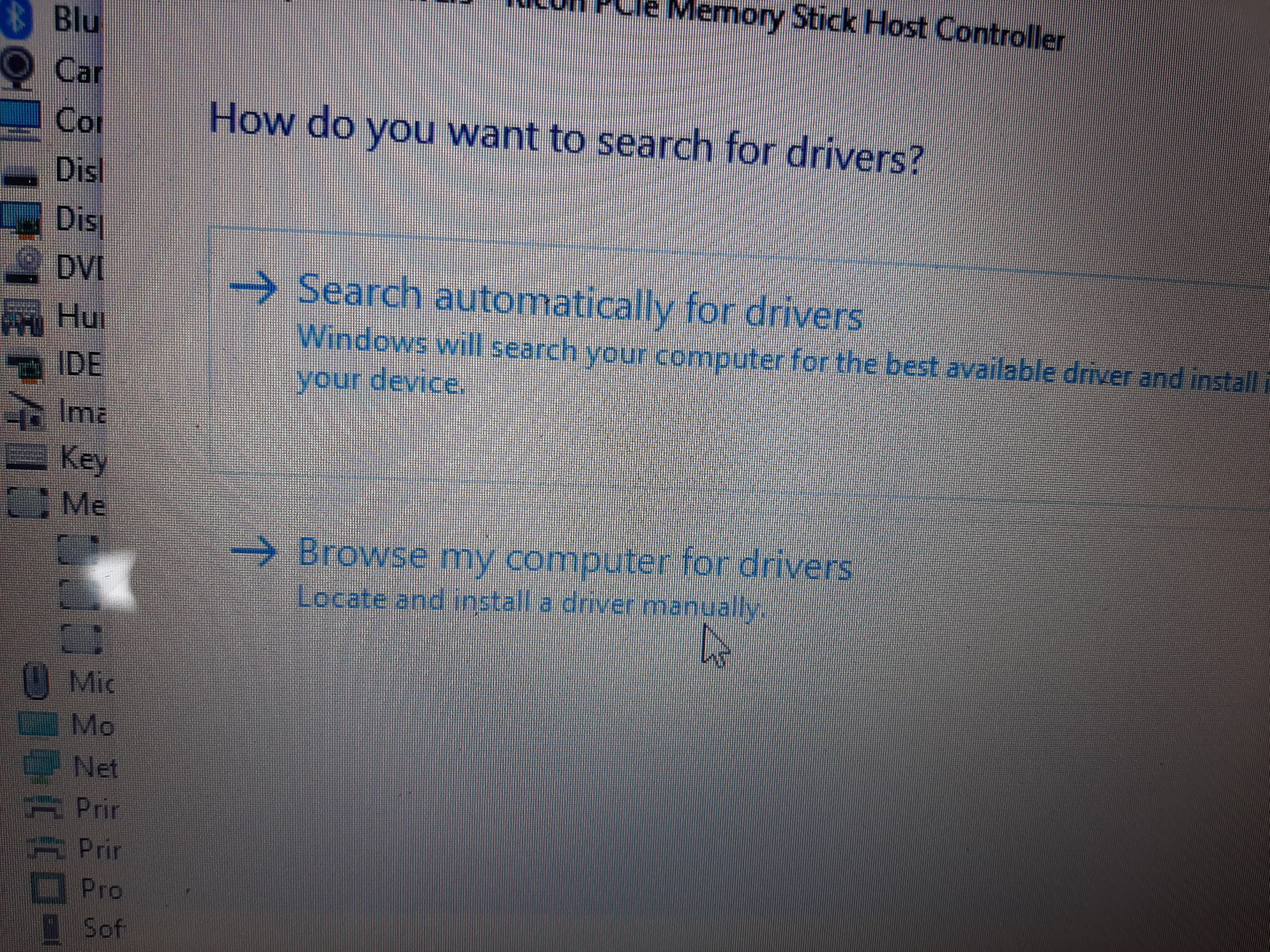
Right-click the device and choose Update driver.
Select Browse my computer for drivers.
Locate the Driver Files
Navigate to the folder where you extracted (unzipped) the driver files — usually in your Downloads folder.
Select the folder that contains the unzipped files, then click Next.
Select the Correct Folder (if needed)
Some driver packages include separate folders for 32-bit and 64-bit versions.
Be sure to select the folder that matches your Windows version.
Check the C: Drive (if the files were unpacked automatically)
In some cases, driver files unpack directly to your C: drive.
For example, Intel drivers often create a folder such as C:\Intel.
If that happens, repeat the steps above and browse to that specific folder when updating the driver.

HELP Area...
 Update drivers in device manager on windows 7.
Update drivers in device manager on windows 8 and 8.1.
Update windows 8 updates program.
Update drivers in device manager on windows 10.
Update windows 10 operating system.
Downloading and opening drivers in ZIP files.
Updating drivers by hand using ZIP files and device manager.
Opening and extracting HP drivers.
What to do if you have no wifi or lan..
Fixing mouse not working.
Using CMD to update drivers.
Recognizing common driver types
Resetting a windows 8, 8.1, 10 and 11 tablet or laptop
Website links
Update drivers in device manager on windows 7.
Update drivers in device manager on windows 8 and 8.1.
Update windows 8 updates program.Update drivers in device manager on windows 10.
Update windows 10 operating system.
Downloading and opening drivers in ZIP files.
Updating drivers by hand using ZIP files and device manager.
Opening and extracting HP drivers.What to do if you have no wifi or lan..
Fixing mouse not working.
Using CMD to update drivers.Recognizing common driver types
Resetting a windows 8, 8.1, 10 and 11 tablet or laptop
Website links
Copyright 2026 Correct Driver Corporation (This website uses no cookies) / Email info@CorrectDriver.com. Page and Drivers Last updated on 10/23/2026.
Microsoft.com Laptop operating system
intel.com Laptop processor
nvidia.com Laptop Graphics card
Microsoft.com Laptop operating system
intel.com Laptop processor
nvidia.com Laptop Graphics card